Smart Moves and Junior Scores
The Smart Moves and Junior tabs work the same way.
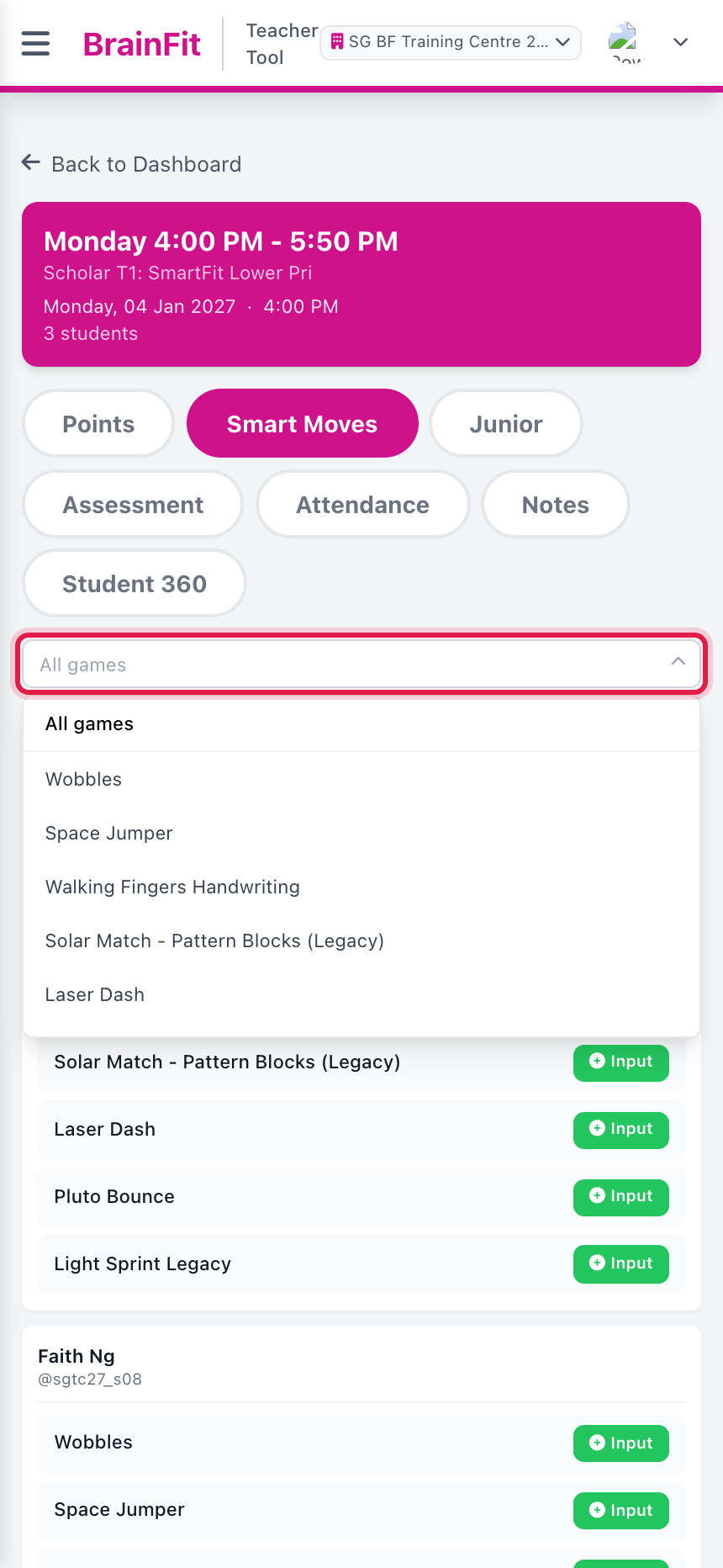
- Open the tab and tap Select a game to input score. Pick the game you are playing in class.
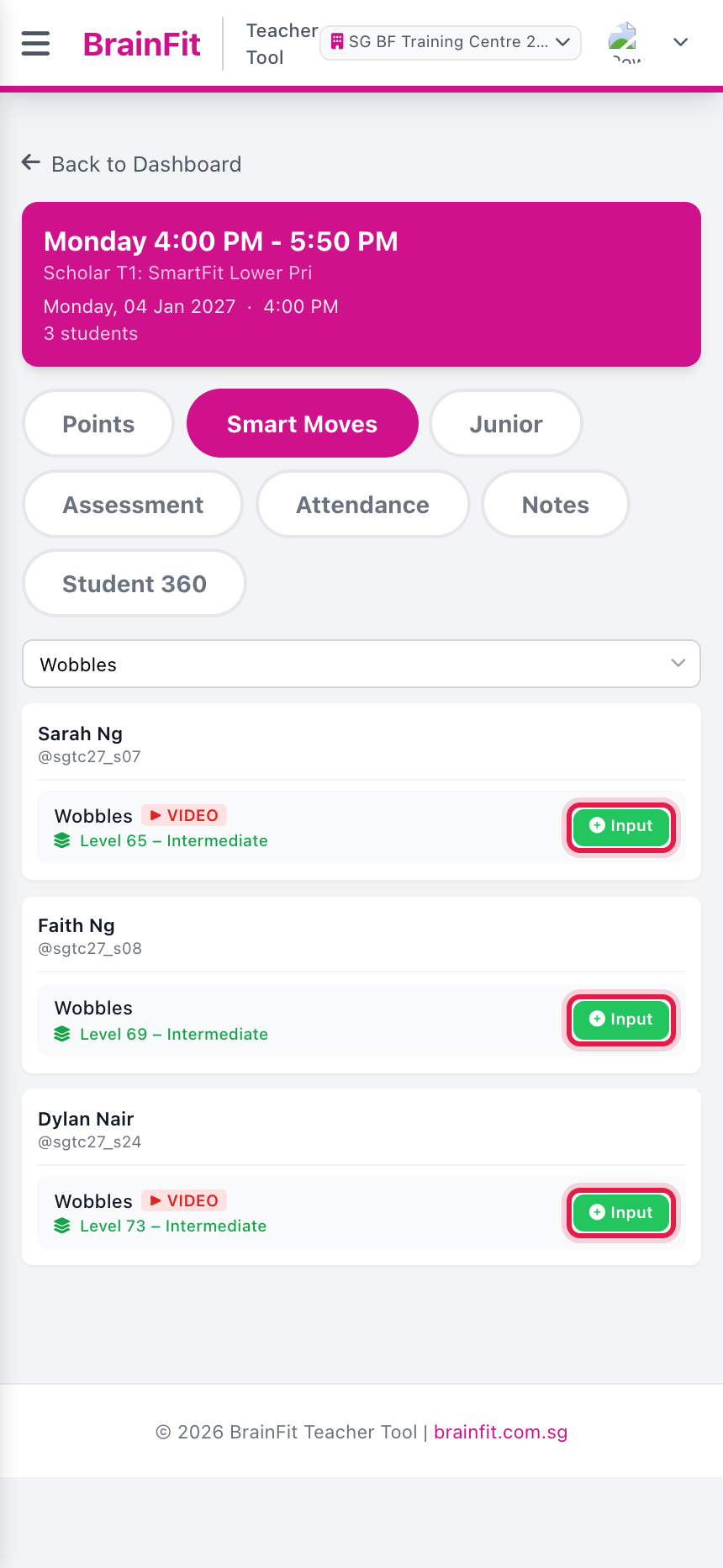
- Each student now shows that game with their current level. Tap Input next to a student. (Tap ▶ VIDEO to watch the exercise.)
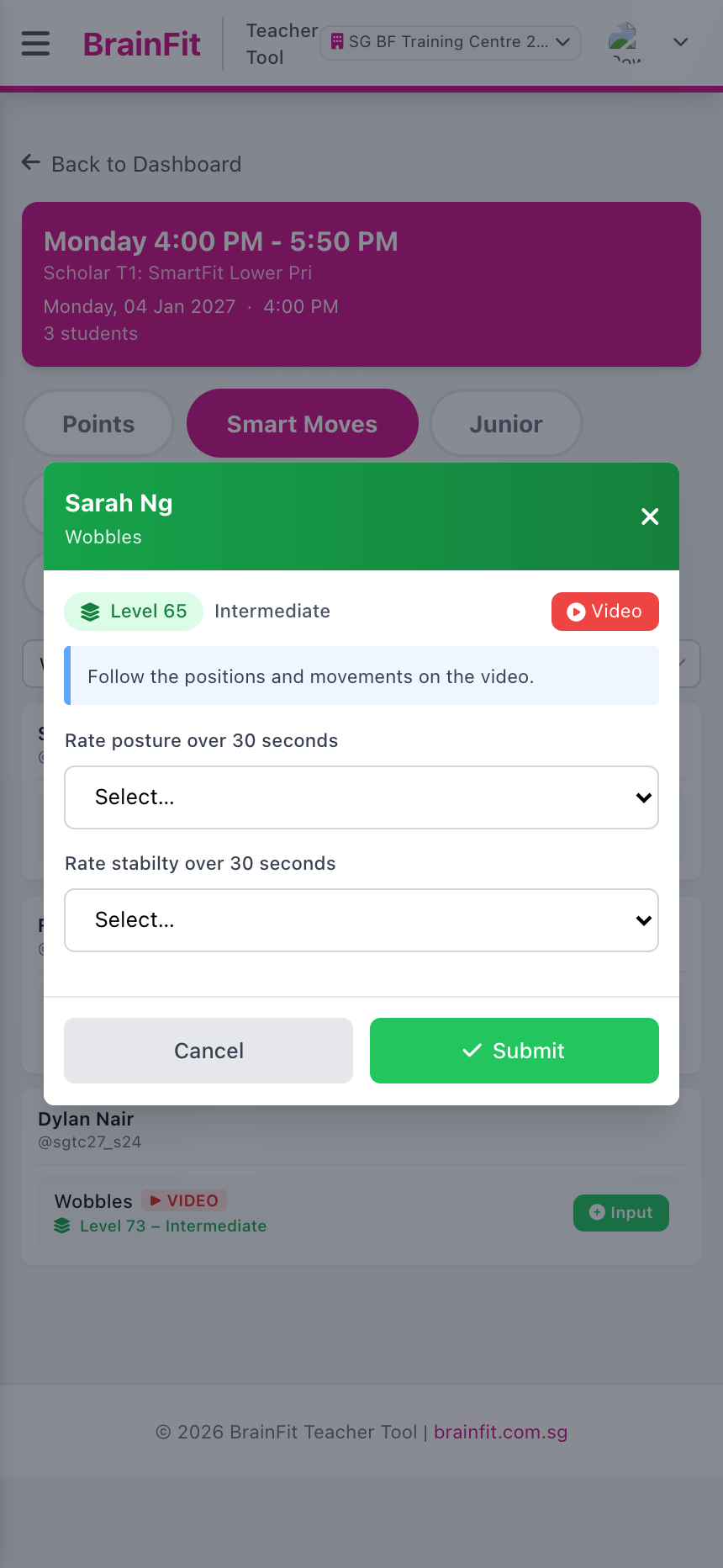
- The score form shows the level, the instruction and the video. Rate each item, then tap Submit. The score is saved to the student's game progress, the same as playing the level.
note
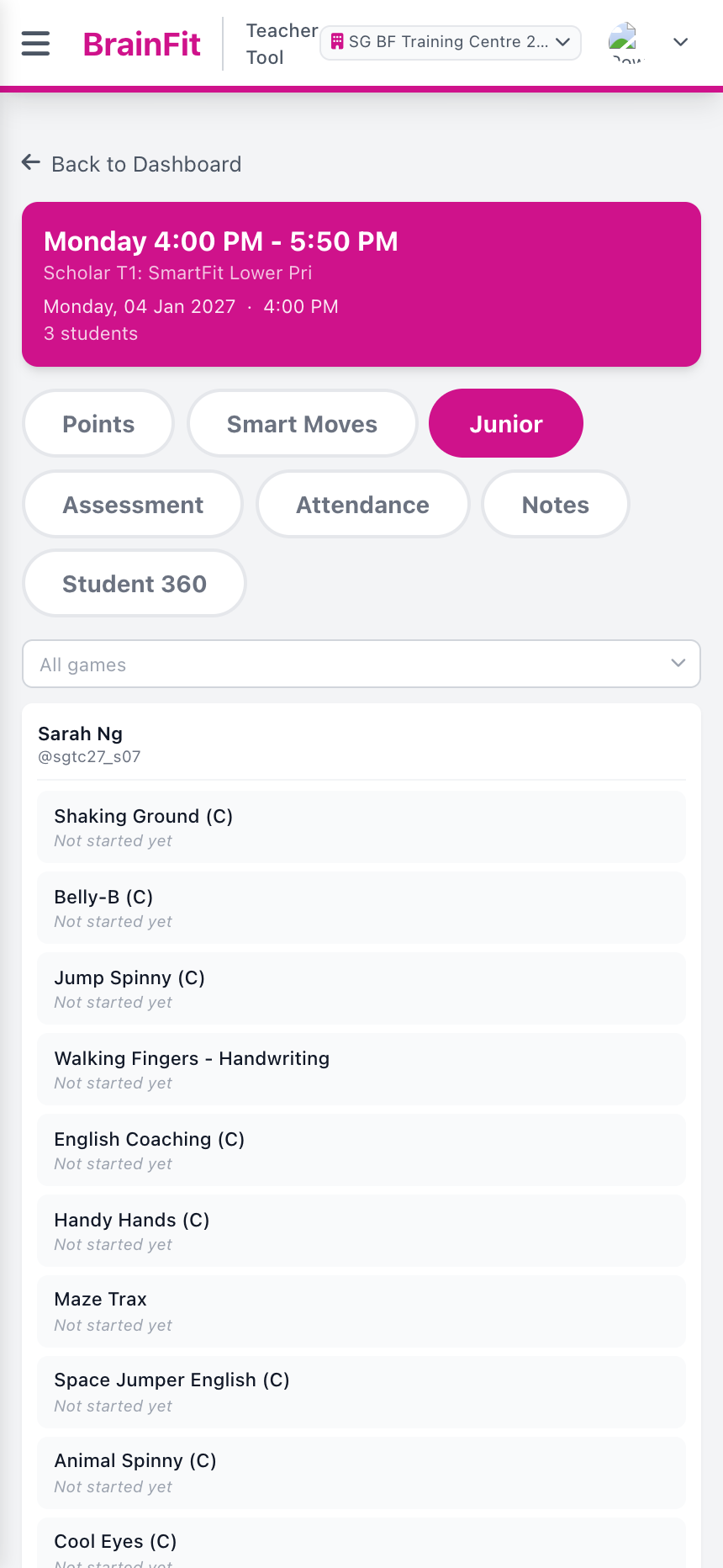
A game shows Not started yet (and no Input button) when it has not been started for that student. It has to be assigned and started first (Class or Student Game config in ACP).
caution
In Junior, the grey Skip button submits the default score straight away. Use it only when you really mean to skip the level.